Docker
What is a Container?
Simply put, containers are isolated processes for each of your app's components. Each component runs in its own isolated environment, completely isolated from everything else on your machine.
- Self-contained: Each container has everything it needs to function with no reliance on any pre-installed dependencies on the host machine.
- Isolated: Since containers are run in isolation, they have minimal influence on the host and other containers, increasing the security of your applications.
- Independent: Each container is independently managed. Deleting one container won't affect any others.
- Portable: Containers can run anywhere! The container that runs on your development machine will work the same way in a data center or anywhere in the cloud!
Container vs Virtual Machine (VM)
Without getting too deep, a VM is an entire operating system with its own kernel, hardware drivers, programs, and applications. Spinning up a VM only to isolate a single application is a lot of overhead.
A container is simply an isolated process with all of the files it needs to run. If you run multiple containers, they all share the same kernel, allowing you to run more applications on less infrastructure.
Images
Seeing a container is an isolated process, where does it get its files and configuration? How do you share those environments?
That's where container images come in!
A container image is a standardised package that includes all of the files, binaries, libraries, and configurations to run a container.
For a PostgreSQL image, that image will package the database binaries, config files, and other dependencies. For a Python web app, it'll include the Python runtime, your app code, and all of its dependencies.
There are two important principles of images:
- Images are immutable. Once an image is created, it can't be modified. You can only make a new image or add changes on top of it.
- Container images are composed of layers. Each layer represents a set of file system changes that add, remove, or modify files.
These two principles let you extend or add to existing images. For example, if you are building a Python app, you can start from the [Python image] and add additional layers to install your app's dependencies and add your code. This lets you focus on your app, rather than Python itself.
Basic Docker Commands
- Install docker engine and CLI using documentation.
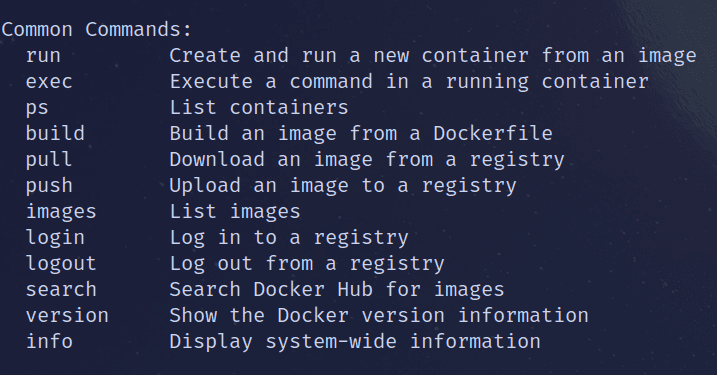
- To (down)load Ubuntu image and spin a new interactive container
docker run -it <image_name>- An image can run multiple containers. ( like operating systems)
- But containers actually run images. With isolated data.
- To list docker container
# all running containers
docker container ls
# docker ps

# all containers
docker container ls -a
# docker ps -a- To start and stop and a container
# To start a container
docker start <container_name>

# to stop a container
docker stop <container_name>- To execute a command (and get results) on a running container.
# to exit container and back to terminal
docker exec <container_name> ls

# to stay in container
docker exec -it <container_name> ls

# to login directly
docker exec -it <container_name> bash- To list all images
docker images
# docker image ls- Port mapping. (runs NodeJS server on image, im not sure)
# exposes 9000 port on container to 6000 localhost of our device
docker run -it -p 6000:9000 mynodeapp

docker run -it- Setting environment variables
docker run -it -p 6000:9000 -e key1=value1 -e key2=value2 mynodeapp- Remove specific containers/images
# remove containers
docker rm <ID or Name>

# remove images
docker rmi <image_name>
Dockerfile
The Dockerfile supports the following instructions:
| Instruction | Description |
|---|---|
ADD | Add local or remote files and directories. |
ARG | Use build-time variables. |
CMD | Specify default commands. |
COPY | Copy files and directories. |
ENTRYPOINT | Specify default executable. |
ENV | Set environment variables. |
EXPOSE | Describe which ports your application is listening on. |
FROM | Create a new build stage from a base image. |
HEALTHCHECK | Check a container's health on startup. |
LABEL | Add metadata to an image. |
MAINTAINER | Specify the author of an image. |
ONBUILD | Specify instructions for when the image is used in a build. |
RUN | Execute build commands. |
SHELL | Set the default shell of an image. |
STOPSIGNAL | Specify the system call signal for exiting a container. |
USER | Set user and group ID. |
VOLUME | Create volume mounts. |
WORKDIR | Change working directory. |
Dockerfile
# Set the `baseImage` to use for subsequent instructions. `FROM` must be the first instruction in a `Dockerfile`.
FROM node

# Execute any commands on top of the current image as a new layer and commit the results.
RUN apt-get update
RUN apt-get upgrade -y

# Copy files or folders from `source` to the `dest` path in the image's filesystem.
COPY . .

RUN npm install

# Configures the container to be run as an executable.
ENTRYPOINT [ "node", "app.js" ]
Bash Commands
# TO build an image from Dockerfile. Exec commands line by line
❯ docker build -t nodecker1 .

❯ docker run -it -p 3000:3000 nodecker1
Successfully running on PORT:3000- Dockerfile caches commands that have already ran once
- That's why whenever make changes, try to keep it as below as possible. To avoid wasting performance and use cache efficiently
- Login, push and pull image containers online
- Also docker composition blah blah copy paste
Docker Networking
Container networking refers to the ability for containers to connect to and communicate with each other, or to non-Docker workloads.
Containers have networking enabled by default, and they can make outgoing connections. A container has no information about what kind of network it's attached to, or whether their peers are also Docker workloads or not.
Bridge networks are commonly used when your application runs in a container that needs to communicate with other containers on the same host.
- Basically, a bridge is setup on host (your device) to connect all containers with internet.
Host : A container has no information about what kind of network it's attached to, or whether their peers are also Docker workloads or not.
- Therefore, both have same localhost. And need for exposing port via mapping
None : Completely isolate a container from the host and other containers. No Ping. No internet. Offline Mode.
User-defined Network
You can create custom, user-defined networks, and connect multiple containers to the same network. Once connected to a user-defined network, containers can communicate with each other using container IP addresses or container names.
docker network create -d bridge myspace
# create custom network myspace on drive bridge

# docker network ls
# to check all existing networks on host

docker run -it --network=myspace --name=iron_name ubuntu
# this will run a container names iron_nam on ubuntu image with custom myspace network
Volume Mount
When a container is destroyed. All memory is lost. That's where volumes come in!
Volumes are the preferred mechanism for persisting data generated by and used by Docker containers. While bind mounts are dependent on the directory structure and OS of the host machine, volumes are completely managed by Docker.
Volume Mapping
To map any local directory to a directory inside a container
docker run -it -v /home/artoriax/DockerVolume/:/home/ubuntu ubuntuDoing this data will be created, deleted, and updated live locally. And will be there, even if container is deleted. You can also connect same path to another container, and it will work just as before.
Create Volume
# To create one
docker volume create custom-vol

# To list all
docker volume ls

# to inspect one
docker volume inspect custom-vol

# to run a container on one
docker run -it --mount source=custom-vol,target=/home/ubuntu ubuntu

# to remove one
docker volume rm custom-vol
Multi-stage build
- Build as runner, and shit to deploy better
- Also in Dockerfile put npm install above copy app.js. So that If no dependencies installed, no need to rerun npm install. Cache better. Be better.
Deploying containers on AWS
Registry
Registry, the open source implementation for storing and distributing container images and other content, has been donated to the CNCF.
Amazon Elastic Container Registry (ECR)
ECR is a fully managed container registry that makes it easy to store, manage, share, and deploy your container images and artifacts anywhere.
Amazon Elastic Container Service (ECS)
ECS is a fully managed container orchestration service that helps you to more efficiently deploy, manage, and scale containerized applications.
- First build a docker images, and try running it
docker build -t p-img .

docker run -it -p 8000:8000 p-img- Set up aws credentials locally.
- Then fuck up because you're gonna anyways.