Pygame
Installation
- Download and install
pythonfrom python.org. - Install
pygameusingpip.
pip3 install pygameGetting Started
import pygame
from sys import exit # closes entire code

pygame.init()

screen = pygame.display.set_mode((800, 600)) # set resolution
pygame.display.set_caption("Dark Souls") # window name
clock = pygame.time.Clock()

while True: # rendering until QUIT
    for event in pygame.event.get(): # check all events
        if event.type == pygame.QUIT: # red cross click
            pygame.quit()
            exit()
    # draw all our elements
    # update everything
    pygame.display.update()
    clock.tick(60) # frame rate
Surface
- Display Surface:
- The game window.
- Is always displayed.
- Must be unique.
- (regular) surface:
- A single image (imported), color, text.
- Needs to be on display surface to be visible.
- Flexible amount.
blit: block image transfer
# sky_suface = pygame.image.load("graphics/Sky.png")
screen = pygame.display.set_mode((800, 600))
text_surface = pygame.Surface((200, 200))
text_surface.fill('Green')

while True:
	screen.blit(text_surface, (20, 50))
Rendering text_surface at on display surface.
 Notice,
 text_surface renders 20px to left and 50px down. Hence,
In
pygamecoordinates starts from at top left and goes from left to right, while goes from up to down.
Render Text
Anti-aliasing : Smooth edges
test_font = pygame.font.Font("font/Pixeltype.ttf", 50) # None, default
text_surface = test_font.render("my text", False, 'Black')

while True:
    screen.blit(text_surface, (150, 50))
Animation
Animations in pygame are achieved by cycling through a sequence of images (frames) over time. Example: Snail Rendering and Animation
screen.blit(img[snail_index // 5], (snail_x, GROUND_Y - img[0].get_height()))
snail_index = (snail_index + 1) % 10

snail_x -= SNAIL_SPEED
if snail_x < -snail_width:
	snail_x = WINDOW_WIDTH
Here we are changing snail frame at fps using snail_index. And are changing snail's x-coordinate at SNAIL_SPEED to make it infinitely loop from end to start.
Be sure update background when animating, otherwise we get strange lagging results.
convert() and convert.alpha()
Use convert() for solid background and convert.alpha() while loading images for better optimization and faster gameplay when working with pygame.
Rectangle
Useful for
- Precise placement of surface.
- Basic Collision.
By default, we place surface using top left co-ordinates. But that can get tricky. Use rectangles for easy access and placements.
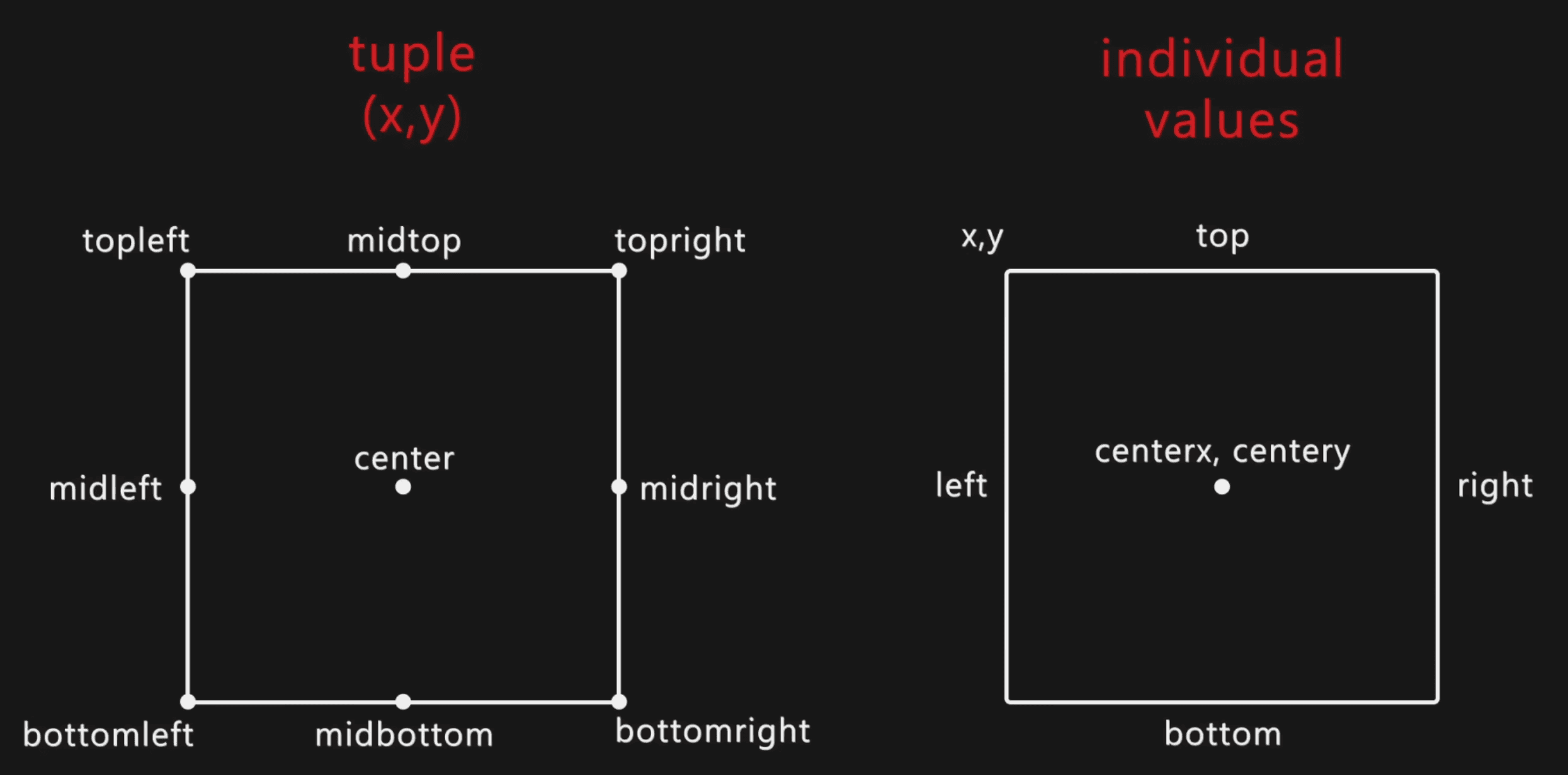
# uncommon method to draw a rectangle
# player_rect = pygame.Rect(left, top, width, height)

# Common: To draw a rect. around a surface
player_surf = pygame.image.load("graphics/Player/player_stand.png")
player_rect = player_surf.get_rect(topleft = (800, 200))

while True:
	screen.blit(player_surf, player_rect) # render
	player_rect.x += 1 # move
	if player_rect.right >= 800:
		player.rect.left = 0
Collision
To check if rect1 is colliding with rect2.
rect1.colliderect(rect2) # returns 0 or 1To check if (x, y) point collides with rect.
rect.collidepoint((x, y))Mouse
To get position of mouse. Returns (x, y) co-ordinates.
pygame.mouse.get_pos()To get mouse buttons pressed. Returns (True, False, False) if left button pressed. Similarly for middle and right button.
pygame.mouse.get_pressed()To get position of mouse while moving.
while True:
	for event in pygame.event.get():
		if event.type == pygame.MOUSEMOTION:
			print(event.pos) # (x, y)
To check if mouse button is pressed or released.
while True:
    for event in pygame.event.get():
        if event.type == pygame.MOUSEBUTTONDOWN:
            print("mouse button was pressed")
        if event.type == pygame.MOUSEBUTTONUP:
            print("mouse button was released")
Draw Rectangle with colors
To draw any shape of any size & color, use
pygame.draw.shape(surface, color, (x,y))
pygame.draw.shape(surface, color, (x,y), width, border radius)
pygame.draw.rect(screen, 'Pink', score_rect)
screen.blit(score_surf, score_rect) # before to blit text after background

pygame.draw.line(screen, 'Black', (0, 0), (800, 400))
Keyboard Inputs
To detect jumping
while True:
    for event in pygame.event.get():
        if event.type == pygame.KEYDOWN:
            if event.key == pygame.K_SPACE and not is_jumping:
	                is_jumping = True

    keys = pygame.key.get_pressed() # get all keys states
    if keys[pygame.K_SPACE]:
        print("Space is pressed rn!")
Can work with keydowns and key ups separately for more control.
Get Time
curr_time = pygame.time.get_ticks()Transform

player_double = pygame.transform.scale2x(player_stand)
# OR
player_bigger = pygame.transform.rotozoom(player_stand, 0, 2)
rotozoom takes 3 args. Surface, rotate angel, and zoom float.
Set Timer
Timer: Custom user event that is triggered in a certain time intervals.
- Create custom event.
- Tel
pygameto trigger that event continuously. - Add code in the event loop.
# +1 on custom event to avoid conflicts
obstacle_timer = pygame.USEREVENT + 1

# Trigger intervally (custom_event, interval in ms)
pygame.time.set_timer(obstacle_timer, 1200)

while True:
	for event in pygame.event.get():
		if event.timer == obstacle.timer:
			# code
Sprite Class
A class that contains a surface and a rectangle; and it can be drawn and updated very easily.
To organize all code snippets of a class into a single place. Player, all snails and flies will be their own sprite.
We can't use screen.blit() to display sprite. Here, we need to
- Place all sprites inside a group or groupSingle
- And Draw/Update all of them at the same time.
- Group: A group of multiple sprites (snails and flies)
- GroupSingle: A group with a single sprite. (player)
Enemies with collision must be in different groups.
# Create Sprite Class
class Player(pygame.sprite.Sprite):
    def __init__(self):
        super().__init__() # calls parent classes constructor (Sprite)
        self.image = pygame.image.load("graphics/Player/player_stand.png")
        self.rect = self.image.get_rect(bottomleft=(100, GROUND_LEVEL))

# Add To Groups
player = pygame.sprite.GroupSingle()
player.add(Player())

# Draw Groups
while True:
	player.draw(screen)
By default sprites support image and rect attributes. But can create custom attributes like self.falling_speed and functions like def player_jump(self): and so on.
To call all the custom functions to defined, you can use a built-in method def update() along with player.draw(surface).
class Obstacle(pygame.sprite.Sprite):
    def __init__(self, type):
        super().__init__()
        self.type = type
        self.image = self.frames[0]
		self.rect = self.image.get_rect(bottomleft=[800, 300])

	def animation(self):
		self.rect -= ENEMY_SPEED

    def destroy(self):
        if self.rect.right < 0:
            self.kill()

    def update(self):
        self.animation()
        self.destroy()


# Create group
obstacle_group = pygame.sprite.Group()

# Append enemies
while True:
	for event in pygame.event.get():
		if event.type == obstacle_timer:
			obstacle_group.add(Obstacle(choice(["SNAIL", "SNAIL", "FLY"])))
Collision in sprites
Use spritecollide(sprite, group, dokill) to check if the sprite is collide with which members of the group, and set dokill to true, if you want to kill member after collision.
Use player.sprite to access player sprite.
Use obstacle_group.empty() to clear all obstacles.
Music
# import sound
jump_sound = pygame.mixer.Sound("audio/jump.mp3")

# play sound
jump_sound.play()
# .play(loops = -1) # for infinite loops, +ve for fixed number of loops

# adjust volume
jump_sound.set_volume(0.5)
That's it.